


How to Schedule Gmail Quiet Hours Without Changing Your Whole Phone
Gmail notifications do not need to interrupt you all day.
You may want Gmail quiet while you sleep, focus, work, sit through meetings, or take a break from email. But that does not always mean you want to silence your whole phone.
You might still want calls, texts, alarms, calendar alerts, reminders, or other apps to behave normally.
You just want Gmail to stay quiet during certain hours.
That is what Gmail quiet hours are for: scheduled quiet time for Gmail notifications, without rebuilding your entire phone notification setup.
With Owl VIP Email Alerts, you can set Gmail quiet hours from one simple screen and quickly change the schedule when your day changes.
Why phone-wide Do Not Disturb can be too much
iPhone and Android both have powerful tools for reducing interruptions, including Focus, Do Not Disturb, and other notification modes.
Those tools are useful when you want to control your whole phone. But they can be more setup than you need when the problem is only Gmail.
To make a phone-wide mode work for a simple Gmail quiet schedule, you may need to configure:
-
allowed people
-
allowed apps
-
call behavior
-
message behavior
-
schedules
-
exceptions
-
notification rules for the rest of your phone
That makes sense if you want a full phone-wide quiet profile.
But if the only thing you want is Gmail quiet hours, it is too much setup for a simple problem.
The Gmail-specific problem
Sometimes you are not trying to create a whole sleep mode, work mode, or personal mode.
You just want to tell Gmail:
Do not notify me during these hours.
For example, you may want Gmail alerts paused:
-
overnight while you sleep
-
during a recurring focus block
-
during meetings
-
during family or personal time
-
during weekends
-
during a daily break from email
Phone-wide modes can control a lot, but they are not always the fastest way to solve a Gmail-only notification problem.
A Simple, Fast Way to Schedule Gmail Quiet Hours
Owl VIP Email Alerts lets you schedule quiet hours for Gmail notifications from one simple screen.
You can set times when Gmail alerts should stay quiet, such as overnight, during work blocks, or during a recurring meeting period. And when your schedule changes, you can adjust the quiet hours quickly.
That matters because quiet time is not always the same every day. You might go to bed earlier one night, stay up later another night, move a focus block, or need Gmail quiet during a different part of the day.
Because the schedule is focused on Gmail notifications, you do not have to build or edit a full phone-wide Focus or Do Not Disturb setup just to stop Gmail from interrupting you.
Your phone can still behave normally.
Gmail just stays quiet when you want it to.

Example: Keep Gmail Quiet While You Sleep
One of the most useful quiet hours setups is overnight.
Random Gmail messages can arrive at any time: newsletters, receipts, promotions, automated updates, or routine work emails. If Gmail notifications are active overnight, those messages can wake you up or interrupt your rest.
With Owl VIP quiet hours, you can schedule Gmail alerts to stay quiet during your sleep hours.
If your bedtime changes, you can quickly adjust the quiet hours without changing your whole phone setup.
That is useful if you still want your phone available for alarms, calls, texts, calendar alerts, or other important notifications, but do not want Gmail interrupting you overnight.

Example: Pause Gmail During Focus Time
Quiet hours are also useful during focus blocks.
Maybe you work best when email is not constantly pulling your attention away. Or maybe you want a recurring period each day when Gmail notifications stop interrupting you.
Instead of manually turning Gmail alerts off and back on, you can use scheduled quiet hours.
That way, Gmail quiet time happens automatically during the hours you choose.
And if your focus block changes, you can update the Gmail quiet hours schedule quickly from the same simple screen.

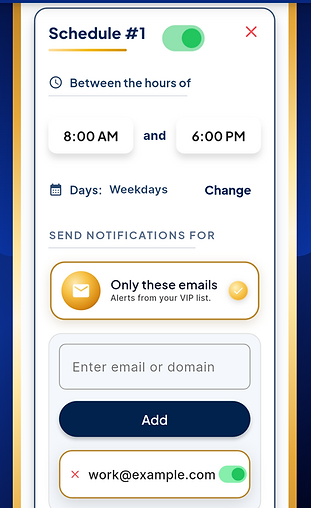
Quiet Hours vs. VIP-Only Mode
Quiet hours are best when you want Gmail notifications paused during a scheduled time.
VIP-only mode is useful when you do not want Gmail completely silent, but you only want important senders or domains to notify you.
You can schedule these notification modes in Owl VIP:
Only these emails — VIP-only: allow notifications only from selected senders or domains
All Emails — get notified for every new Gmail message
No Notifications — pause Gmail alerts completely
That gives you flexibility depending on the situation.
If you want Gmail silent overnight, use No Notifications.
If you want only important senders during focus time, use Only these emails.
If you are waiting for any new email, use All Emails.
Your Gmail notification setup can change with your day without forcing you to rebuild your phone’s entire notification system.
Control Gmail Quiet Time Without Changing Everything Else
The main benefit of Gmail-specific quiet hours is control.
You do not have to silence your whole phone just because Gmail is noisy. You do not have to rework calls, texts, alarms, apps, schedules, and exceptions just to stop email alerts during certain hours.
Owl VIP Email Alerts keeps Gmail notification control simple, fast, and focused.
It is useful if you want to:
-
schedule Gmail quiet hours overnight
-
pause Gmail alerts during focus time
-
stop Gmail from interrupting meetings or personal time
-
quickly adjust Gmail quiet hours when your schedule changes
-
keep calls, texts, alarms, and other apps working normally
-
avoid setting up a full phone-wide Focus or Do Not Disturb profile
-
schedule different notification modes: VIP-only, All Emails, or No Notifications
With Owl VIP, Gmail can stay quiet when you want it to, without changing how the rest of your phone behaves.
Download Owl VIP Email Alerts
Owl VIP Email Alerts connects to Gmail through Google Sign-In.
Free to download. A subscription is required to connect Gmail and use notification features, with a 7-day free trial for new subscribers.
Owl VIP Email Alerts is an independent app and is not affiliated with, endorsed by, or sponsored by Google. Gmail and Google are trademarks of Google LLC.


